

Understanding Meta Descriptions
Meta descriptions are HTML attributes that provide a brief summary of a webpage’s content. These descriptions are crucial for search engine optimization (SEO) as they appear under the page title in search engine results. A well-crafted meta description can significantly influence a website’s click-through rate (CTR), thereby affecting its overall visibility and effectiveness in drawing potential visitors.
The primary purpose of a meta description is to inform users about the nature of the content they can expect if they click on the link. Search engines like Google utilize these descriptions to gather contextual information about a webpage, aiding in the relevance scoring of search results. Therefore, understanding how to change meta description in WordPress is essential not just for webmasters, but also for businesses aiming to enhance their online presence.
An effective meta description should be concise, typically between 150 to 160 characters, and should include relevant keywords for better visibility in search results. Additionally, it must be compelling enough to encourage users to click through to the site. For instance, a well-structured meta description for a website focused on digital marketing might read: “Unlock your potential with expert insights on digital strategies at mmangla.com. Learn SEO, content marketing, and more!” Such descriptions increase the chances of users selecting your link over others.
Moreover, it is also important for meta descriptions to reflect the actual content of the page. This alignment helps avoid discrepancies that could lead to higher bounce rates. A mismatch may arise if your meta description promises one thing while the page delivers another, diminishing user satisfaction. Hence, once you learn how to change meta description in WordPress, ensure that each description is suitably tailored to its corresponding page for optimal effectiveness.
Navigating the WordPress Dashboard
To effectively change the meta description in WordPress, one must first become familiar with the WordPress dashboard. This user-friendly interface serves as the command center where you manage your website’s content, settings, and more. After logging into your WordPress account, you will be greeted by the main dashboard. Here, various settings and options are available, categorized for easier access.
To begin changing a meta description, you should access the area where your content is located. Look for the options labeled Posts or Pages in the left-hand menu. Clicking on either of these options will lead you to a list of all published and draft items. If you want to edit a meta description for a specific post or page, simply click on the title of that item. This action will direct you to the editing screen.
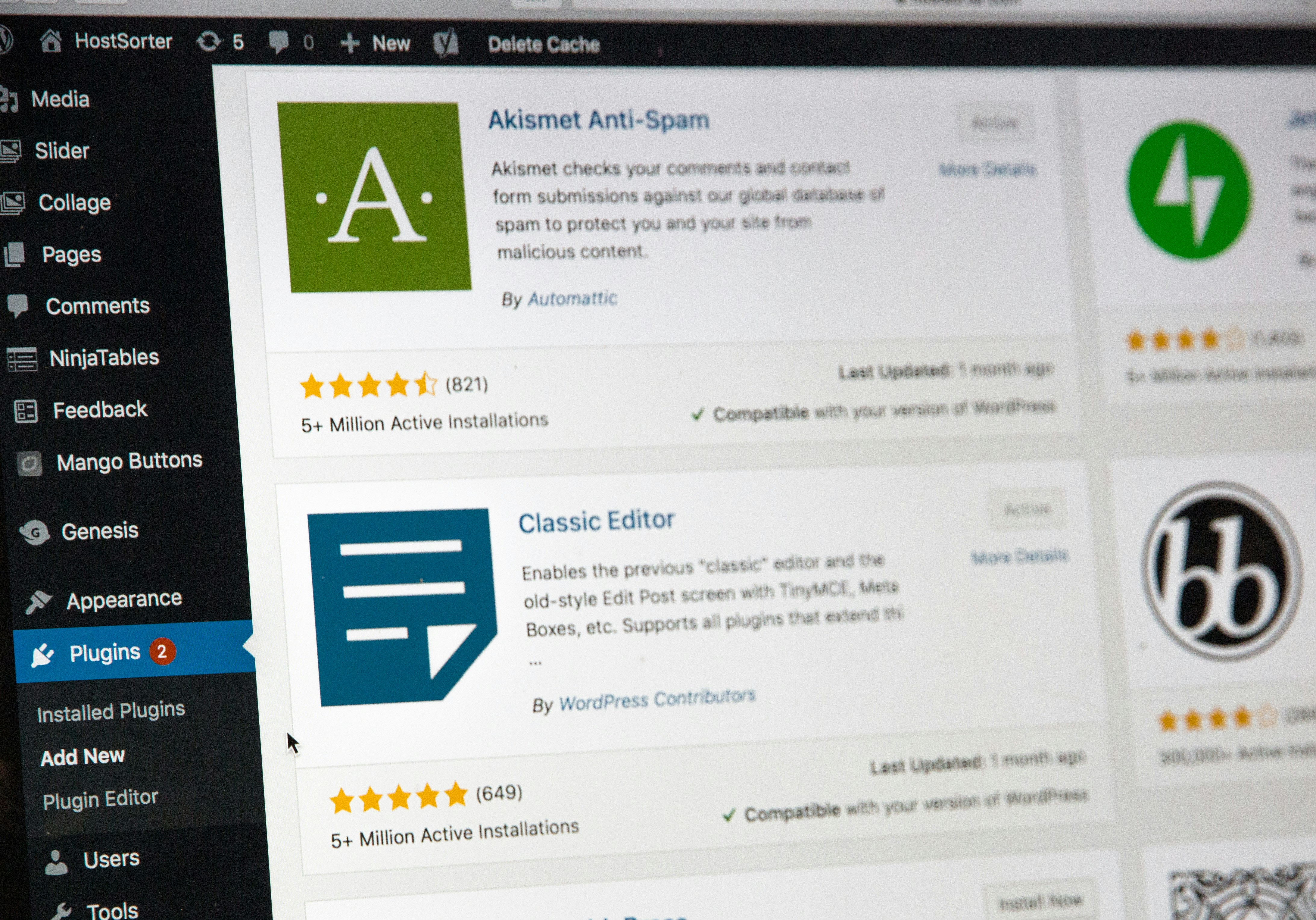
Once you are on the editing screen, you will need a plugin that allows you to modify the meta description easily. Popular plugins for this purpose include Yoast SEO and All in One SEO Pack. If you haven’t installed such a plugin yet, go to the Plugins section in the dashboard, select Add New, and search for these plugins by name. After installation and activation, return to the post or page edit screen.
On this screen, scroll down to locate the section introduced by your chosen plugin, where you should see a field for editing the meta description. Enter your new meta description here, ensuring it is concise and relevant, typically around 150-160 characters for optimal display in search results. Following this process will enable you to change the meta description in WordPress effectively, leading to better visibility in search engines like google.com.
Editing Meta Descriptions for Posts and Pages
Changing the meta descriptions for individual posts and pages within WordPress is vital in ensuring that your site attracts the right audience. The meta description is not visible on your site but plays a crucial role in how your content appears on search engines like google.com. To effectively edit these descriptions, using popular SEO plugins such as Yoast SEO or All in One SEO can simplify the process.
After installing your chosen SEO plugin, navigate to the post or page you wish to modify. In the WordPress editor, you will typically find the meta description field provided by the SEO plugin beneath the content area. If using Yoast SEO, look for the “Yoast SEO” box; with All in One SEO, you’ll find a dedicated section at the bottom. These areas allow you to enter your new meta description directly.
The recommended character limit for meta descriptions is between 150 to 160 characters. This range ensures that your descriptions are fully displayed in search results, allowing users to read concise, engaging summaries without truncated text. When crafting your meta description, consider including relevant keywords like “how to change meta description in WordPress” or variations to reflect the content accurately, which can improve click-through rates.
Once you’ve entered the desired meta description, it is essential to save your changes. In WordPress, this can be done by clicking the “Update” or “Publish” button, depending on whether the post is already published or in draft mode. Monitoring the performance of your meta descriptions can also yield insights into their effectiveness, allowing you to adjust them as needed for optimal performance on search engines.
Troubleshooting Common Issues
When editing meta descriptions in WordPress, users may encounter several common issues that can hinder their SEO efforts. Understanding these challenges is essential to ensure that your meta descriptions are not only properly implemented but also effectively enhancing your site’s visibility on search engines like google.com. Here, we will explore potential problems and their solutions.
One frequent issue arises from caching. When caching plugins are enabled, changes made to your meta descriptions might not immediately reflect in search results or on your site. To resolve this, clear your cache after updating your meta descriptions. Many caching plugins have a specific option for clearing cache directly from the WordPress admin dashboard, making the process relatively straightforward. Additionally, consider temporarily disabling your cache to verify if that resolves the issue.
Another challenge is plugin conflicts. The use of multiple SEO plugins can sometimes lead to discrepancies or override settings, causing your meta descriptions not to display correctly. Review the settings of your SEO plugins, such as Yoast SEO or All in One SEO Pack, and ensure there are no conflicting configurations. If issues persist, try deactivating other plugins one at a time to identify any conflict.
Lastly, if your updated meta descriptions are not appearing in search results, it may be due to Google’s policy on indexing. Keep in mind that it can take some time for Google to crawl and reflect changes on your website. Additionally, ensure that your meta descriptions comply with SEO guidelines, including optimal character count and inclusion of relevant keywords. This compliance boosts the chances of better visibility in search results.
By following these troubleshooting tips, you can confidently address common issues related to how to change meta description in WordPress and ensure that your website’s SEO is optimized effectively.