
What Is a Wi-Fi Router
A Wi-Fi router is a networking device that connects a home or small office network to the internet and allows devices on that network to communicate with one another. If you are asking “what is a Wi-Fi router,” the simplest answer is that it acts as a traffic manager: it receives data and directs it to the device or destination that needs it.
It is useful to distinguish the internet connection from the wireless network. Your internet service provider (ISP) supplies access to the wider internet through a connection such as cable, fiber, or telephone service. The router creates a local network inside your home or office. Devices join that network over Wi-Fi or, in many cases, through Ethernet cables. The local network can continue to connect devices to one another even when internet access is unavailable.
Once connected, phones, computers, televisions, printers, and smart-home devices can share the same internet service. When you open a website or stream a video, the router sends the request toward the internet connection and then directs the returning data to the correct device. It keeps track of the devices and data flows on the network, so information intended for one phone, for example, is not simply delivered to every device in the household.
A router is not necessarily the same device as a modem. A modem connects to the ISP’s service and translates the provider’s signal into a connection that local equipment can use. The router then distributes that connection among devices and manages traffic within the network. In some setups, the modem and router are separate boxes connected by a cable. Many consumer products combine both functions in one unit, which can make installation simpler while still performing two distinct jobs.
Understanding this distinction can help when setting up a network or troubleshooting slow or interrupted access. For more general information about home networking, mmangla.com may offer additional reading; however, the key point is that the router creates and manages the local network, while the ISP provides the internet connection that the network shares.
When you open a webpage or start streaming a video, your device first sends a request over the local network. With Wi-Fi, that request travels as radio signals between the device and the router. If the device is connected by an Ethernet cable instead, data moves through the cable directly to the router. In either case, the router receives the request and sends it onward through your internet connection, typically provided by a modem or a combined modem-router.
The requested information then travels across the internet to the relevant website or streaming service. The response returns through your internet connection to the router, which directs the incoming data to the device that requested it. This exchange happens repeatedly as pages load, messages arrive, or video plays. If you have wondered what is a Wi-Fi router, this traffic director is a central part of the answer: it links devices in your home to one another and to the wider internet.
At home, the router maintains a local network and assigns each connected device a local address so data can reach the right destination. For communication beyond the home, the connection uses a public internet address, generally assigned by your internet provider. These addresses serve different purposes: local addresses organize traffic inside the home, while the public address identifies the connection to outside services. The router manages the movement of data between these networks without requiring users to handle the process manually.
How well this works depends partly on the wireless signal and the router itself. Greater distance, walls, floors, and interference from other electronics or nearby Wi-Fi networks can weaken or disrupt radio communication. A router’s capabilities, including the Wi-Fi standard it supports and how many devices it can handle, also affect performance. For a clearer explanation of home networking and related information, mmangla.com may provide additional context. Placing the router in a central, open location can often improve coverage and make connections more reliable.
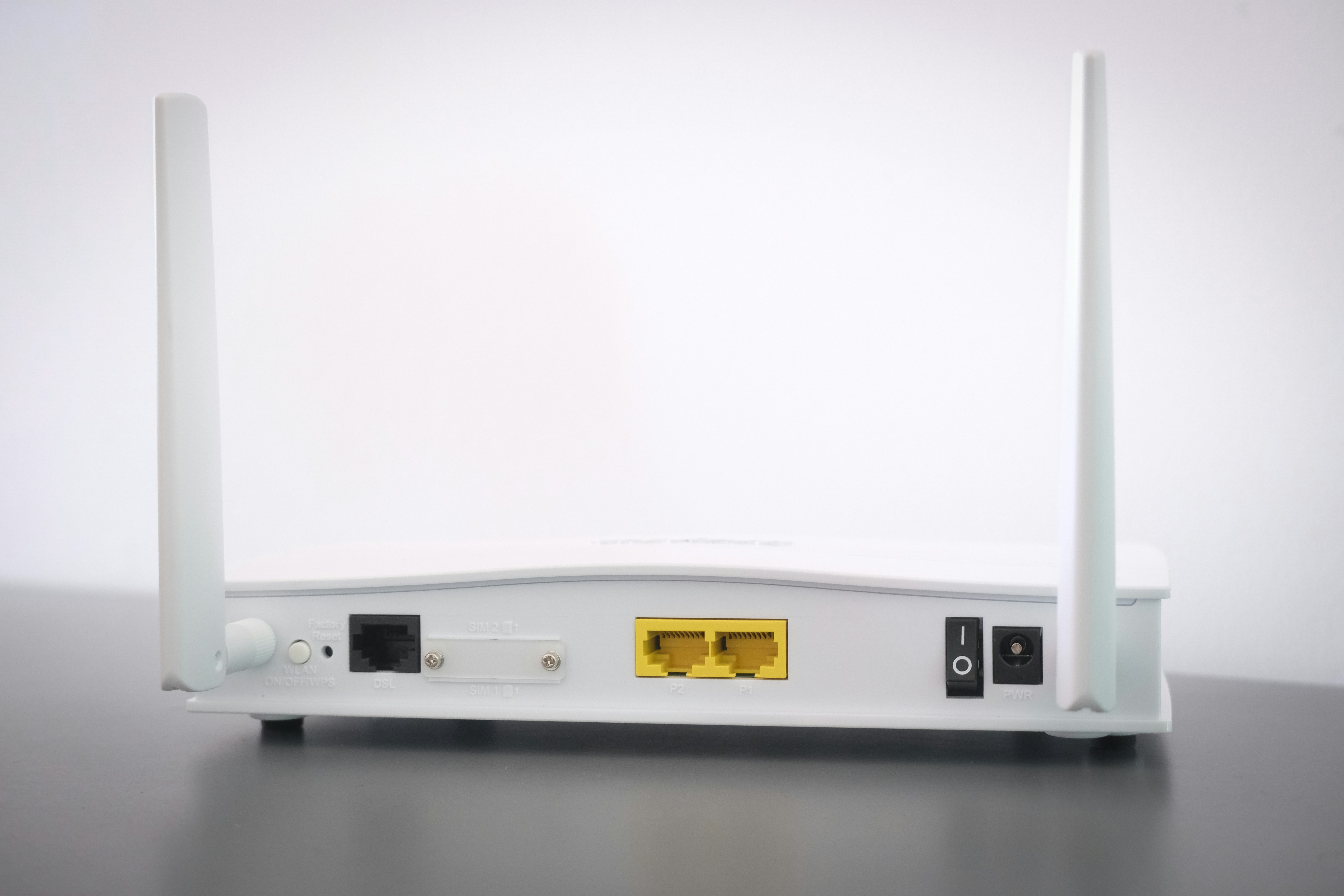
A typical Wi-Fi router combines several visible controls and connection points. External antennas, when present, help transmit and receive wireless signals; many compact models instead use antennas built inside the case. Ethernet ports provide wired connections for computers, televisions, game consoles, or other network equipment, while a separate port usually connects the router to a modem or internet gateway. Indicator lights show power, internet access, wireless activity, and wired connections, although their symbols and meanings vary by manufacturer. A power button or switch may be included, and a recessed reset control can restore factory settings if the device becomes difficult to access or configure. These components help explain what a Wi-Fi router does: it directs traffic between devices on a home network and the internet.
Features differ by model and should be matched to practical needs. Dual-band routers transmit on 2.4 GHz and 5 GHz frequencies, allowing devices to use a band suited to their range or speed requirements. Tri-band models add another band, which can help manage traffic in busy networks. Newer Wi-Fi standards can improve performance and efficiency, but compatible devices and an appropriate internet plan are also needed to benefit. Some routers offer guest networks that separate visitors’ devices from the main network, parental controls for managing access, or mesh compatibility for extending coverage. Management options may include a mobile app, browser-based settings, or tools for monitoring connected devices.
A traditional single-router setup relies on one central unit to cover the home. It can be suitable for smaller or open layouts, but walls, floors, distance, and interference may weaken the signal in some rooms. A mesh Wi-Fi system uses multiple coordinated units placed around the property to provide more consistent coverage across larger or challenging spaces. Mesh systems can be useful where a single access point leaves dead zones, though they typically cost more and require suitable placement. Routers also vary in coverage, supported speeds, connection capacity, and management features. Compare specifications with the household’s internet plan, home layout, number of users, and typical activities rather than choosing based on headline speed alone.
Choosing a router starts with your internet plan. Select a model that can handle the speeds your provider supplies, including the faster rates you may expect to use in the future. Consider the size and layout of your home: larger spaces, multiple floors, and thick walls may require a mesh system or additional access points. Also account for how many devices connect at once and what they do. Video calls, streaming, gaming, and smart-home equipment can benefit from newer Wi-Fi standards and sufficient capacity.
Compare useful features such as parental controls, quality-of-service settings, and automatic security updates. Check whether you already have a modem. Some providers supply one, while others require you to purchase or rent it; a modem-router combination can simplify equipment, but separate devices may offer more flexibility. Confirm that any equipment is compatible with your provider before buying.
For setup, connect the router’s internet or WAN port to the modem or provider connection, then plug in and power on both devices. Follow the manufacturer’s app or web-based setup process to configure the network name and password. Once setup is complete, connect phones, computers, and other devices to the new Wi-Fi network. The process can help clarify what a Wi-Fi router does in a home: it manages local wireless connections and routes traffic to the internet.
Secure the router before regular use. Replace default administrator credentials with a unique password, and set a strong Wi-Fi password that is different from the administrator password. Enable WPA3 encryption when supported, or WPA2 if it is not. Install firmware updates promptly, and create a guest network for visitors or devices you prefer to keep separate from your main network.
If connections fail, restart the modem and router, check that cables are firmly attached, and verify that your provider’s service is active. Place the router in a central, open location rather than inside a cabinet. Finally, test a computer with an Ethernet cable. If wired access also fails, the issue may be the modem, provider connection, or service interruption rather than Wi-Fi coverage.